Selecting fixtures
Choosing what you are about to change: fixtures, heads and groups.
The selection is the answer to “what am I about to change”. Almost every programming command acts on it, so getting it right is most of the work.
In the GUI
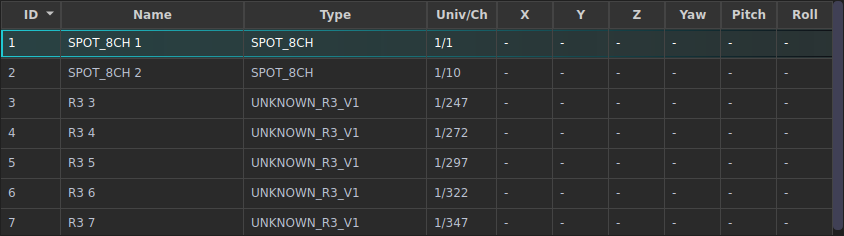
Click a row in the Fixtures table on the Fixtures & Groups tab.
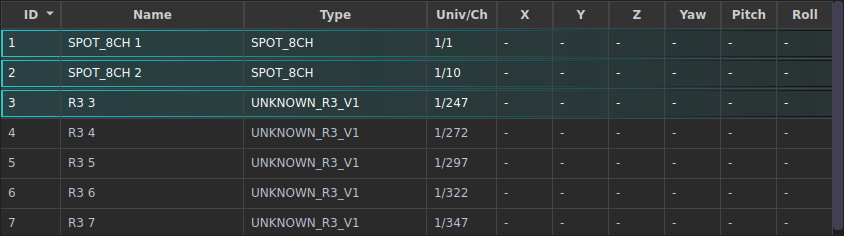
| Gesture | Result |
|---|---|
| Click | Select that fixture only |
| Ctrl-click | Add or remove one fixture |
| Shift-click | Select the run between the last click and this one |
| Click a Groups row | Select that group |
| Click the expander on a multi-head fixture | Show its heads, then select them individually |
| Click empty space / Clear prog | See “Clearing”, below |
The selection order matters: fanning, effect phase and spread all run in the order you picked things, so selecting 8, 7, 6, 5 fans the opposite way round to 5, 6, 7, 8.
Selected fixtures are highlighted, and the fixture table’s text colours tell you where each value came from - there is a colour key under the table:

| Colour | Value came from |
|---|---|
| Light blue | You, in the programmer |
| Green | A preset |
| Gold | A palette |
| Magenta | An effect |
| Grey | Nothing in the programmer - playback or default |
From the command line
FIXTURE 1
FIXTURE 1 THRU 8
FIXTURE 1 + 4 + 9
FIXTURE 1 THRU 4 + 9 THRU 12
GROUP 2
1 THRU 8                  # the FIXTURE keyword is optional
SELECT is the long form, and the one that takes several clauses at once:
SELECT FIXTURE 1 THRU 4 GROUP 2
SELECT FIXTURE 1 HEAD 1.1 THRU 1.4
SELECT GROUP 1 INTENSITY 100      # select and set in one line
Check what you have:
SHOW SELECTION
Heads and cells
A fixture with several cells - an LED bar, a multi-head wash - exposes each one
as a head, addressed <fixture>.<head>:
SELECT HEAD 4.1
SELECT HEAD 4.1 THRU 4.6
A head range stays inside one fixture. Setting a value with the whole fixture selected writes it to every head; selecting one head writes only to that head. Both can be true at once, and the fixture table shows a warning marker when a head is holding its own value that the fixture-level control cannot see.
Stored looks record the resolved key, so
REDon a five-cell bar is stored asred,red2…red5. This matters if you are hand-editing a cue
- see Cues.
Groups in a selection
Selecting a group is not the same as selecting its members. With
CONFIG GROUP REFERENCE (the default), a value set while a group is selected
is stored against the group, so the look follows the group’s membership if
you change it later. With CONFIG GROUP ABSOLUTE the value is baked out to the
fixtures that were members at the time.
Both are legitimate; reference mode is what makes a preset stored on “all front wash” still correct after you patch two more front-wash fixtures. See Groups.
Clearing
| Command | Clears |
|---|---|
CLEAR SELECTION | The selection; programmer values stay |
CLEAR PROGRAMMER | The programmer values; selection stays |
CLEAR ALL | Both |
CLR | Short alias for CLEAR - CLR PROGRAMMER, CLR ALL, etc. |
The Clear prog button in the fixture action row runs CLEAR PROGRAMMER.
To drop a single attribute rather than everything, use UNSET:
FIXTURE 1 THRU 4 UNSET
or click the small unset button beside an attribute control in the programmer.
Selection and the rest of the desk
Selection drives more than the programmer:
- Quick Access only offers the palettes, presets, effects and targets that are valid for what you have selected (Quick Access).
APPLY,UNAPPLY,PALETTE,PRESET,CAPTURE,AIMandUPDATE CUE … REMOVE SELECTEDall default to the selection.- Highlight and Solo exist to show you your selection on stage - see Output and master controls.