The main window
Every panel, tab and toolbar on the main window, and what each is for.
One window runs the whole console. It is four regions, and every one of them can be resized by dragging the grip between it and its neighbour.
┌──────────────────────────────────────────────────────────────┐
│  File   Licence   Help          Live│Blind  Autosave         │  menu + state toolbar
│                                 Blackout  Emergency  ▮Master │
├───────────────┬──────────────────────────────────────────────┤
│               │                                              │
│  west-side    │            the PROGRAMMER                    │
│  tabs         │   Quick Access · Basic · Gobos · Beam ·       │
│  (Fixtures &  │   Custom - one bank page at a time            │
│   Groups,     │                                              │
│   Cues, …)    │                                              │
├───────────────┴────────────────────────┬─────────────────────┤
│  Command Line - history + input        │  cue list + GO      │
└────────────────────────────────────────┴─────────────────────┘
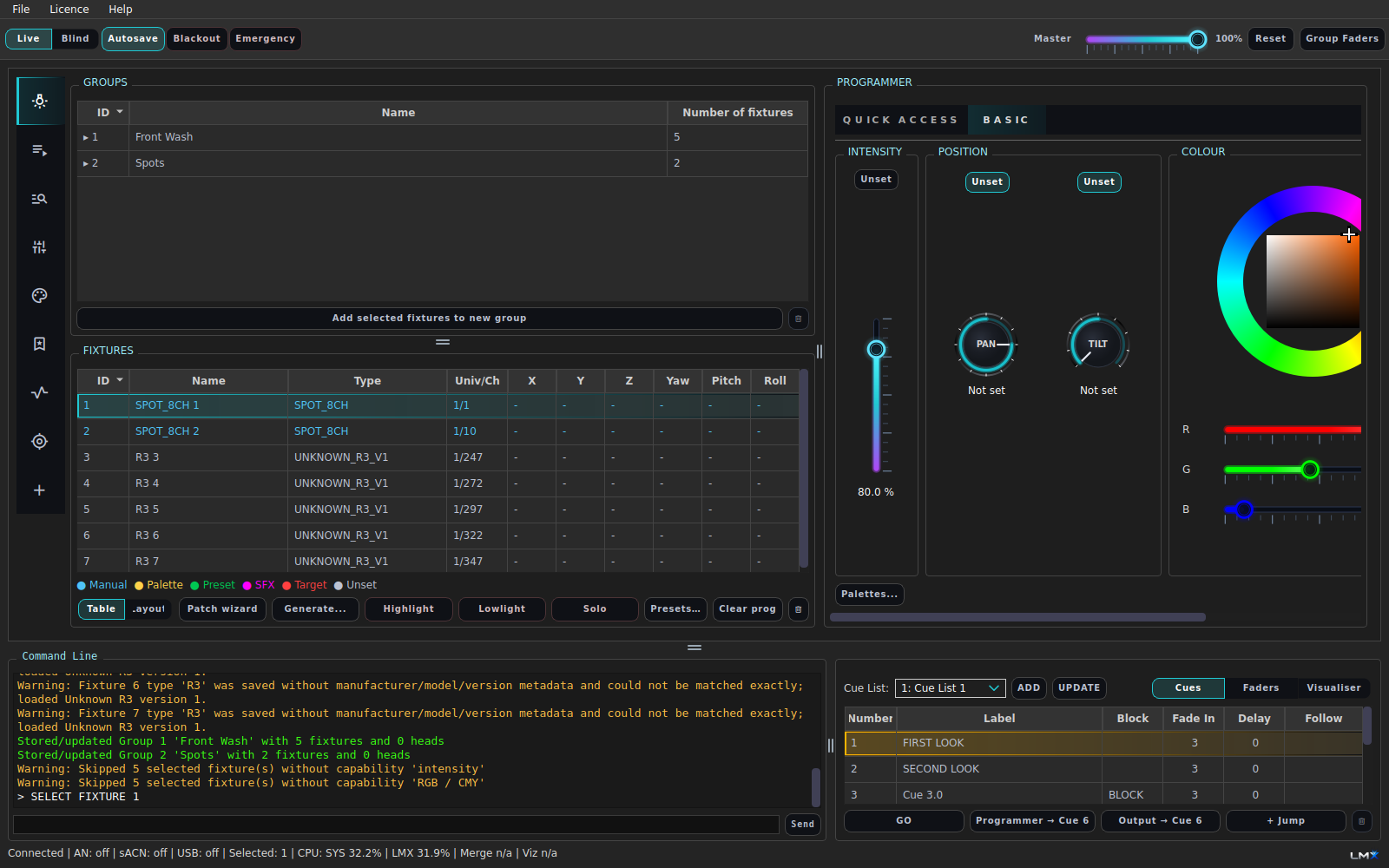
Every control is listed individually, with its command, in the Control reference.
The state toolbar
Along the top, to the right of the menus:

| Control | What it does | Command |
|---|---|---|
| Live / Blind | Whether the programmer reaches the output at all | LIVE · BLIND |
| Autosave | Autosave the current showfile (needs a saved file first) | CONFIG AUTOSAVE ON|OFF |
| Blackout | Everything to zero, with a configurable fade back up | BLACKOUT |
| Emergency | Emergency stage state - supersedes everything | EMERGENCY |
| Master fader + Reset | Grand master; scales every intensity | MASTER GRAND <level> |
Zoom buttons sit on the same bar. They scale the whole interface - see
CONFIG DISPLAY ZOOM in Configuration.
The west-side tabs

The vertical tab strip on the left. Each tab is one kind of thing you store or run, and each has its own table (and, for the picture-able kinds, an Icons view):
| Tab | Holds | Topic |
|---|---|---|
| Fixtures & Groups | The patch, your groups, and the fixture action row | Fixtures · Groups |
| Cues | The cue list, its cues, and the store/GO controls | Cues |
| Cue Inspector | One cue opened up: parts, values, timings | Cues |
| Faders | The fader bank for the selected page | Faders |
| Palettes | Stored attribute values | Palettes |
| Presets | Stored looks | Presets |
| SFX | Effect templates and frequency masters | SFX |
| Targets | Points in the room to aim at | Targets |
| + | Add a custom view - your own arrangement of the panels above | below |
Custom views
The + tab makes a new tab holding whatever combination of the panels you choose, so a busking layout (groups, palettes, faders side by side) can live next to the theatre layout. Right-click a custom view’s tab to rename, reconfigure or remove it. Custom views are stored in the showfile.
The fixture action row
Under the Fixtures table on the Fixtures & Groups tab, in order:
Table / Layout switch · Patch wizard · Generate… · Highlight · Lowlight · Solo · Presets… · Clear prog · delete
The Table/Layout switch swaps the fixture table for the 2D stage layout in the same space. Highlight, Lowlight and Solo are output overrides that help you see what you have selected - see Output and master controls.
The programmer
The right-hand side, and the thing you spend most of your time in. It shows a control for every attribute the current selection actually has, grouped into bank pages you switch between with the tabs at the top:
- Quick Access - one-click tiles for the palettes, presets, effects and targets that fit the selection (Quick Access)
- Basic - intensity, colour, position, and the colour wheel
- Gobos - gobo wheels and gobo rotation
- Beam - zoom, focus, iris, shutter/strobe, prism, frost
- Custom - anything the fixture profile exposes that is not in the above
Below the position controls sits the fan panel - spread, direction, random, wings and blocks (Fanning and spread).
Full detail: The programmer.
The command line
The bottom-left pane. Type a command and press Enter; the history above it shows what you typed and what the console said back, colour-coded:
| Colour | Meaning |
|---|---|
| White | The command you ran |
| Green | It worked |
| Amber | It worked, with something you should know |
| Red | It was rejected |
Every GUI action echoes its command here. That is the fastest way to learn the syntax: do it with the mouse once, read the line it printed.
See The command line.
The cue pane
Bottom-right: a duplicate of the Cues tab’s essentials - the cue list selector, the cue table, GO, and the store buttons - so you can run the show while the west side is showing something else entirely.
Menus
| Menu | Contains |
|---|---|
| File | New, Open, Save, Save As, Export (Patch / Objects / Without Cues), Fixture Editor, Patch Wizard, Generate from Rig, Config…, Exit |
| Licence | Your licence state, activation, offline codes, deactivating this device |
| Help | This help - contents, search, and every topic by category |
F1 opens help from anywhere.
Windows that open on their own
These are separate windows, not tabs:
Config · Fixture Editor ·
Patch Wizard · Generate ·
3D visualiser · 2D layout ·
Scene objects · Calibrate ·
Fader Config (Faders) · Target window (Targets) ·
Fixture Inspector (INSPECT FIXTURE <id>)